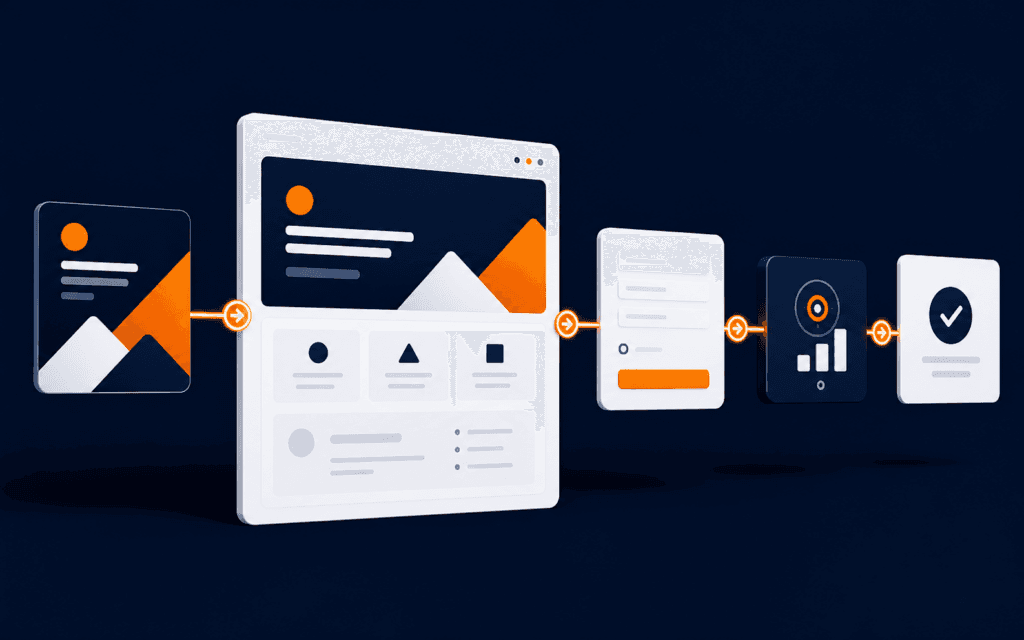
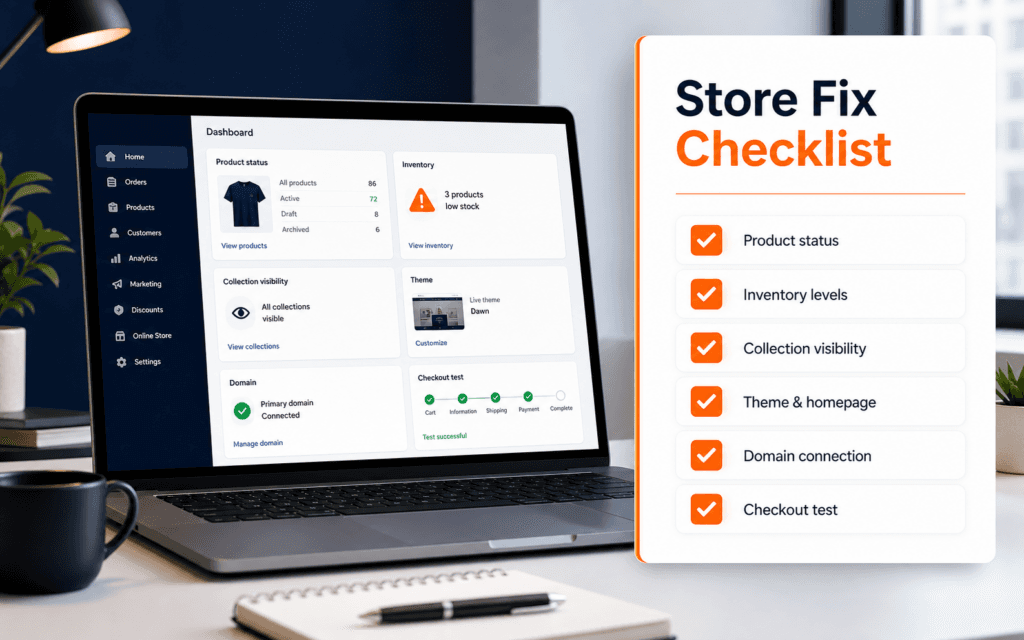
To learn and apply the concept and complete the stated reader task, troubleshoot a Shopify theme app extension as six separate states: extension source, build output, released app version, theme compatibility, merchant configuration, and storefront behavior. Confirm the exact app, store, theme, template, extension handle, block type, released version, and failing URL before changing anything. A successful deploy does not prove that a merchant added an app block, activated an embed, or published the theme you tested.
Use a development store or unpublished theme for reproduction, preserve the current production state, and collect evidence at every boundary. Theme app extensions reduce direct theme-code changes, but blocks, embeds, assets, settings, and app versions still have distinct failure modes. Roll back through the platform’s version and configuration controls when possible instead of editing live Liquid blindly.
Classify The Missing Experience
Write the expected customer or merchant behavior and the exact place it should appear. Distinguish an app block inside a section from an app embed that injects a floating, overlay, analytics, or metadata experience. Record whether the problem occurs in the theme editor, preview, published storefront, one template, one market, or every page.
Capture store domain, app version, extension handle, theme name and ID, template, section, locale, browser, device, and test account. Do not collect customer credentials or personal data. A screenshot without these identifiers cannot show which configuration produced the failure.
Confirm The Supported Integration Type
Shopify documents two main theme app extension integrations: app blocks and app embed blocks. App blocks add inline content to compatible sections. App embeds target head or body contexts and are suited to floating elements, overlays, analytics, or similar behavior. Verify that the selected type matches the intended placement.
Do not use an embed to imitate repositionable inline content or assume a block can appear in a section that does not support app blocks. Review the extension schema target, file handle, settings, assets, snippets, and locale files. A wrong target can build successfully while making merchant setup confusing or impossible.
Verify Theme And Template Compatibility
App blocks require an Online Store 2.0 style JSON template and a section that supports blocks of type @app. Confirm the exact template and section in the theme being tested. A product template may support an app block while a custom landing template does not.
Open the theme editor for the target theme and template. Check whether the Apps picker offers the block and whether it can be added, moved, configured, saved, and rendered. Do not conclude that the app is broken because the block is absent from an incompatible vintage theme or unsupported section.
Check Merchant Activation And Placement
Shopify notes that app blocks are not automatically included after installation; merchants add them in the theme editor. App embed blocks are typically deactivated by default and must be activated. Verify the saved configuration in the exact theme rather than only the app installation state.
For blocks, confirm placement, section settings, dynamic source, product context, and visibility conditions. For embeds, confirm activation, target, page scope, consent behavior, and whether another overlay obscures it. Clear onboarding should tell merchants where to add, activate, remove, reorder, and configure the extension.
Separate Preview From Published Theme
A development preview, unpublished theme preview, and live storefront may use different theme IDs, app versions, data, and settings. Record the preview URL and published theme. Confirm which environment received the extension configuration and whether the merchant actually published the tested theme.
Never publish a theme solely to see whether a block appears. Reproduce in a development store or duplicate theme when permitted, compare theme configuration, and schedule a controlled release. If the live theme differs, move the verified configuration through an approved change process with a rollback target.
Validate Assets And Runtime Behavior
Inspect whether extension CSS, JavaScript, snippets, and locale resources load from expected Shopify-hosted paths. Check browser console and network evidence for missing assets, syntax errors, CSP issues, duplicate initialization, slow requests, and selectors that assume one theme’s markup.
Keep JavaScript scoped, defensive, and responsive to theme editor events. An app block can be added or reordered without a full page load in the editor. Avoid global styles and IDs that collide with theme components. Test desktop, mobile, localization, keyboard access, reduced motion, and dynamic section rendering.
Build And Test Before Release
Use Shopify CLI’s development workflow to preview the extension in an authorized development store. Test adding, removing, moving, configuring, disabling, and reenabling blocks or embeds. Verify supported templates and clear merchant instructions. Run the build command so enforced extension limits and Theme Check issues are surfaced before deployment.
A clean build is necessary, not sufficient. Run functional scenarios with representative products, missing data, long text, multiple currencies or locales where relevant, and app service failure. Confirm that the storefront remains usable when remote data is slow or unavailable.
Verify The Released App Version
Shopify app deployment creates a version containing app configuration and extensions, and releasing a version changes what stores receive. Record the active version before and after release. Confirm that the intended extension changes are included rather than assuming local source automatically reached merchants.
Account for propagation time and avoid repeated deployments while a release is still applying. Compare the app version, extension build, and store result. If an older version remains active, release the intended tested version through the approved process. If the new version causes harm, use the platform’s supported rollback or release controls rather than patching production theme code.
Test Theme Editor Compatibility
The extension should behave in the theme editor as well as the storefront. Verify selection outlines, settings changes, block movement, section reloads, and preview modes. Floating embeds must not cover editor controls or critical page content.
Detect editor context only when behavior genuinely needs adjustment, and keep storefront logic consistent. Merchant-facing setting names, defaults, descriptions, and locale strings should explain the outcome without technical jargon. A technically working block can still fail operationally if merchants cannot configure it safely.
Diagnose Data And Context Failures
App blocks can access contextual data and dynamic sources according to their placement, while app embeds have different scope. Confirm product, collection, customer, market, or metafield data exists in the failing context. Test empty and unauthorized states instead of assuming every page has the same objects.
Render a safe fallback when data is unavailable. Do not expose private fields in HTML or logs. If an external API powers the block, separate storefront rendering failure from app-service failure using request IDs, status, timeout, and sanitized logs. Preserve the page’s core shopping path when the app cannot respond.
Work Through A Missing Reviews Block
Assume a reviews app block appears in a development theme but not on the live product page. First confirm the live theme ID and product template. Check whether its main product section supports @app, whether the merchant added and saved the block, and whether the reviewed product has the expected metafield or remote data. Compare the released app version with the local preview build.
If the block exists but renders empty, inspect network and console evidence, data scope, locale, and fallback behavior. If it is absent from the editor, focus on compatibility, extension release, and block schema rather than storefront CSS. Reproduce in a duplicate or development theme, document the correction, and verify mobile layout, editor controls, product switching, and safe behavior when reviews are unavailable before releasing.
Create A Controlled Rollback Plan
Before release, record the prior active app version, theme configuration, affected templates, and verification steps. Define who can restore the prior version, disable an embed, remove a block, or revert a theme publication. Choose the smallest rollback that stops harm while preserving evidence.
After rollback, verify product pages, cart path, navigation, performance, console errors, and the specific extension location. Keep the failed version, logs, and reproduction in a non-production environment for diagnosis. Do not erase the evidence by repeatedly changing live settings.
Document The Fix And Handoff
Write the root cause at the correct layer: incompatible section, inactive embed, wrong theme, missing version release, asset error, data assumption, or merchant instruction gap. Record the correction, tested environments, limitations, release owner, rollback, and monitoring.
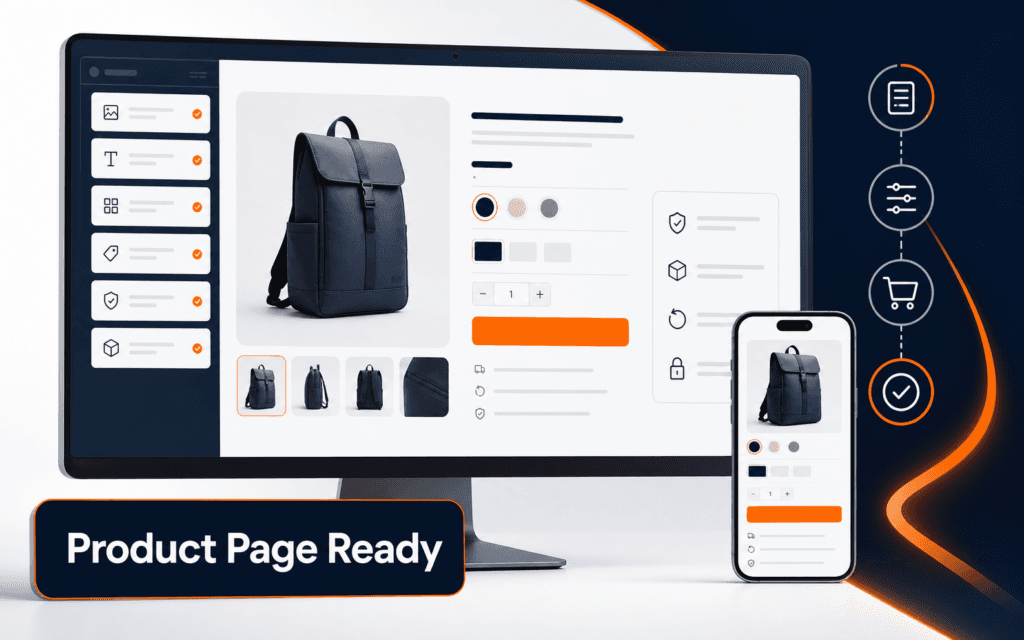
Use the Shopify product page evidence guide when packaging sanitized project proof. A Shopify Development course can provide guided practice, while production stores still require authorized access, platform-current checks, and merchant-specific release controls.
FAQ
Why is my Shopify app block missing from the theme editor?
Confirm that the exact theme uses JSON templates, the target section supports @app, the released extension includes the block, and you are editing the intended template and theme.
Why is an app embed installed but not visible?
Installation does not necessarily activate an embed. Check Theme settings, App embeds, target and page scope, saved settings, active app version, assets, and runtime errors.
Does deploying a Shopify app extension publish it to stores?
Deployment creates an app version, but teams must verify the intended version is released and active. Also confirm merchant placement or activation and the published theme configuration.